Lab 5: Week 2 LED Temperature Alert System - Automated measurements
… and understanding our code
Purpose
Lab 5 as a whole is about building a measurement and control system.
In this second part of the thermocouple lab, you will add to your Python script to record data locally. Just as we did in Lab 4, you will create a .csv file to record your data.
You will then calibrate your thermocouple setup with boiling water and ice water. Finally, you will use the thermocouple sensing system to activate an LED if a critical temperature is reached (either too hot or too cold).
Learning Goals
The goals of this Lab (all weeks together) are to:
- Review circuit concepts to physically connect measurement hardware to a computer
- Gain experience with General Purpose Input and Output pins (GPIO)
- Become familiar with Python programming used to control sensors and physical systems
- Investigate and evaluate measurement capabilities of a measurement instrument
- Calibrate the instrument
- Control sampling rate
- Write data to a local host computer
- Calibrate the instrument (and estimate Type B calibration error)
- Determine an estimate of Type A (random) measurement uncertainty
- Write data to the Cloud
- Use real-time automated decision making to control physical systems based on incoming data
- Send alerts wirelessly via WiFi and SMS communication protocols
- Report your findings in a formal lab report
This weeks objectives are in bold.
In this part of the thermocouple lab you will add to your Python script to record data locally. Just as we did in Labs 3 and 4, you will create a .csv file to record you data. You will then be able to calibrate your thermocouple setup with boiling water and ice water. Finally, you will use the thermocouple sensing system to activate an LED if a critical temperature is reached (either too hot or too cold).
Background
Thermocouples are an essential part of many industrial processes and temperature control systems. They need to be calibrated regularly to ensure proper operation. In this second part of the lab, you will add code to your Python script to record data locally on the RPi. Like in Lab 4, these data will be used to recalibrate the thermocouple using a two-point calibration of boiling water (100\(^\circ\)C) and ice water (0\(^\circ\)C). Additional lines of code will be needed if the thermocouple is not outputting the correct temperature.
Finally, you will add lines of code to your Python script to send a warning message and activate an LED indicator if the temperature becomes too high or too low – thus simulating physical control systems used in industrial processes and thermal regulation.
Methods
Remember to activate your Virtual Environment as root, so do the following:
sudo su
source lab_env/bin/activate
# CHECK: Your terminal prompt should now start with (lab_env)
Methods: Writing Data to a .CSV file
In order to create a calibration curve and assess measurement uncertainty (Type A: random and Type B: systematic) for the thermocouple you will need to collect data.
Comma-separated Variables (or .csv) files can be opened by numerous software packages to perform data analysis. Last time we used the python .write to add data to our file. This time, we will write two variables (Celsius and Fahrenheit) to the file using a formatted python string. To do so, we first opened a file-object called f, then wrote some data and finally close the file-object:
f.open('<file_name>.csv','a')
f.write('<a string> /n')
f.close()
This week we are doing it slightly differently. We are also using with open(...) instead of f = open(...). While they perform similar tasks, with open is safer because it automatically closes the file when the block of code is finished, preventing data corruption.
Because we are going to write two variables at the same time, we are also going to use a different way to create the string that we are going to write.
Code implementation
Modify you code following the steps below.
Create the file header: Think about where in the code this code should go.
with open("thermodata.csv", "a") as log:
   log.write("\n" + "Celsius, Fahrenheit")
# Creates a header for each column every time you run the program
Embed the code to collect temperature measurements and to write the data into a
for-loopso that the data is simultaneously presented on-screen and written to the .csv file.with open("thermodata.csv", "a") as log: log.write("\n{0},{1}".format(str(temperature_C), str(temperature_F)))Code Explanation:
log: The file-object that is being written to"a": Opens the file in Append mode (adds to the end rather than overwriting).{0},{1}: Placeholders that get filled by the values inside.format()\n: Creates a new line for each entry.
ImportantTest the system after you have added these lines of code be sure you are creating a data file with 30 samples!
Calibration
Once your logging-script is working, take measurements to generate a two-point calibration curve using 0\(^\circ\)C (ice water) and 100\(^\circ\)C (boiling water) reference temperatures.
Use the collected data to:
- calculate mean \(\pm\) standard deviation for each reference temperature
- determine slope and offset of your temperature calibration curve.
Add lines of code to your script to correct the temperature output based on the slope and offset of the two-point calibration curve.
Hardware connection – LED Control
Connect the LED to the RPi as shown in the diagram below. Use different locations on the breadboard to accommodate the thermocouple sensor, as needed. GPIO pinout is provided below for reference.
ImportantShut down the RPi before making the connection and ask an instructor to get the wiring checked before turning it back on!
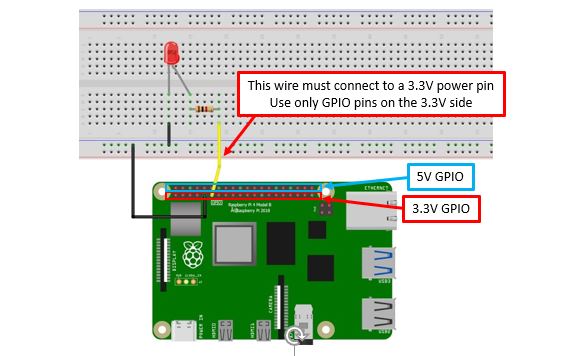
Wiring diagram to connect the LED to the RPi for automated control 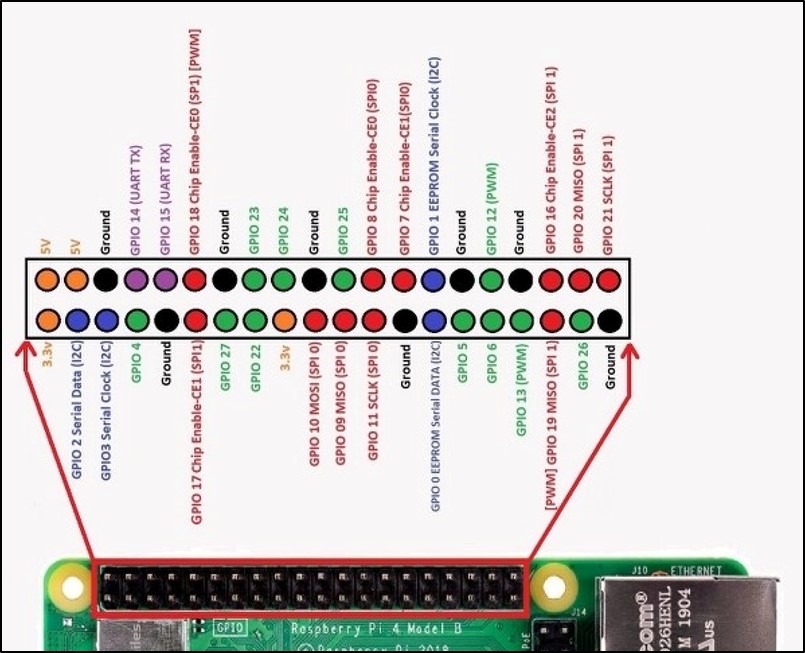
GPIO Overview
Software Connection: LED Control
You will need to add a few new lines of code to the Python script to activate e the LED when a critical temperature is reached. Do this after you have finished your measurements for the calibration.
Open the thermocouple Python code in Thonny and add the following lines of code in the appropriate locations within the program. Control the LED so that the light is normally OFF, but turns ON (and stays on) below \(15^{\circ}\)C or above \(30^{\circ}\)C. Make sure the LED turns OFF if temp is between \(15-30^{\circ}\)C.
Add the lines of code on the right to enable the GPIO and setup the LED connection
You will determine the correct locations within the Python program to put them
import RPi.GPIO as GPIO
GPIO.setmode(GPIO.BCM)
GPIO_LED = (17)
GPIO.setup(GPIO_LED, GPIO.OUT)
Add the below lines of code to set the temperatures which activate the LED. (Think about where these should go). This code checks if the temperature is unsafe (below \(15^\circ\)C or above \(30^\circ\)C) and turns the LED on:
# Check for critical temperatures
if thermocouple.temperature > 30.00:
   GPIO.output(GPIO_LED, GPIO.HIGH)
   print("WARNING!! Too Hot")
elif thermocouple.temperature < 15.00:
   GPIO.output(GPIO_LED, GPIO.HIGH)
   print("WARNING!! Too Cold")
else:
   GPIO.output(GPIO_LED, GPIO.LOW)
Since we have two conditions to check (too hot or too cold) we will use the
elifstatement. This stands for else if. If the first criteria is not met (> 30.00), it will check the next criteria (<15.00). You can add as many of these as you like. The else statement at the end provides the default setting if none of the other criteria are met.Final Step: Add a second, different color LED to the circuit. Modify the Python code to turn one LED on if the temperature is too hot, and turn the other LED on if it is too cold. Neither LED should be on at room temperature.
Acknowledgements
This Lab was prepared by Dr. Chris Bachmann. Special thanks to Joe Rudmin for obtaining necessary supplies and facilitating the lab setup.
| Revision | Description | Author |
|---|---|---|
| 2026-03-10 | Updated with input from Dr. Colfranchesci | Tobias Gerken |
| 2025-02-28 | Updated to account for thermocouple lab 3 | Tobias Gerken |
| 2024-03-01 | Updates for clarity and error fixes | Tobias Gerken |
| 2024-02-23 (S24) | Updated to Web, changes to sample code and images | Tobias Gerken |
| Initial Version | Chris Bachmann |