Tools - Github with Github Desktop
(Adapted from Rémi Daigle’s Datamanagement Workshop)
Using version control, which allows us to track changes in a file or a collection of files, helps us avoiding situations like this:

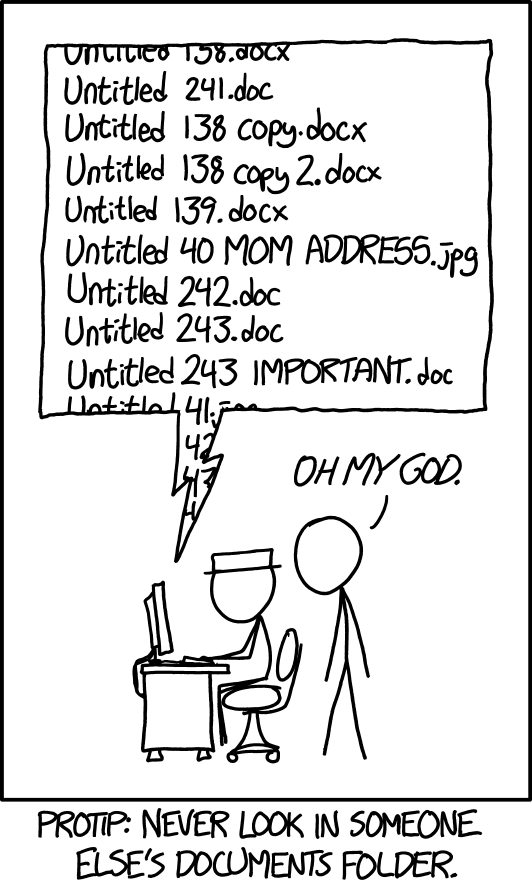
The Git version control system has become the de-facto standard in software engineering for version control and is now also used by scientists to develop reproducible workflows, to collaborate and to share their code.
Things are a bit complicated because there are actually three different things that we will making use of:
- Git is a free and open source distributed version control system designed to handle everything from small to very large projects with speed and efficiency.
- GitHub is an online platform for hosting projects using Git. It includes a source-code browser, in-line editing, wikis, and ticketing. Free for public open-source code.
- GitHub Desktop App GitHub Desktop is Git client with a nice user interface that simplifies many of the git workflows. It also provides a seamless way to contribute to projects on GitHub.
Setting up Github and Github Desktop
- The first step is to make a personal account on GitHub. How to do this is describe here: Creating an account on GitHub
- After that you can install Github-Desktop to interface with GitHub. Follow the steps described on Installing GitHub Desktop for the operating system of your computer.
- Now connect the installed GitHub Desktop to your GitHub account using the Authenticating to GitHub in GitHub Desktop instructions.
- Test your installation and connection (following the Tutorial on CodeCademy):
- You should now see the
Let's get started!screen. Chose theCreate a New Repository on your Hard Driveoption
- In the following screen:
- Name your repository
Hello-ISAT-420 - Change the local path to the folder in which you are keeping all your ISAT 420 materials
- Then click the button
Create Repository
- Name your repository
- You are now ready to publish this repository to GitHub.com (see below)

- You should now see the
Git Workflows
Merge changes from upstream into a forked repository
- Use GitHub-Desktop to merge in changes into a
forkedrepository:- Make sure that you have committed and pushed all local changes before the merge
- Click
Fetch Originto make GitHub-Desktop aware of all changes on GitHub.com- This is always something that you should do when you come back to Github-Desktop after a while.
- Got to
Branch–>Merge into current branchThis will allow you to merge any changes that happened in a different brach (e.g. in the original repository that you forked) into your branch - Select
upstream/mainfrom theOther branchesand clickCreate a merge commit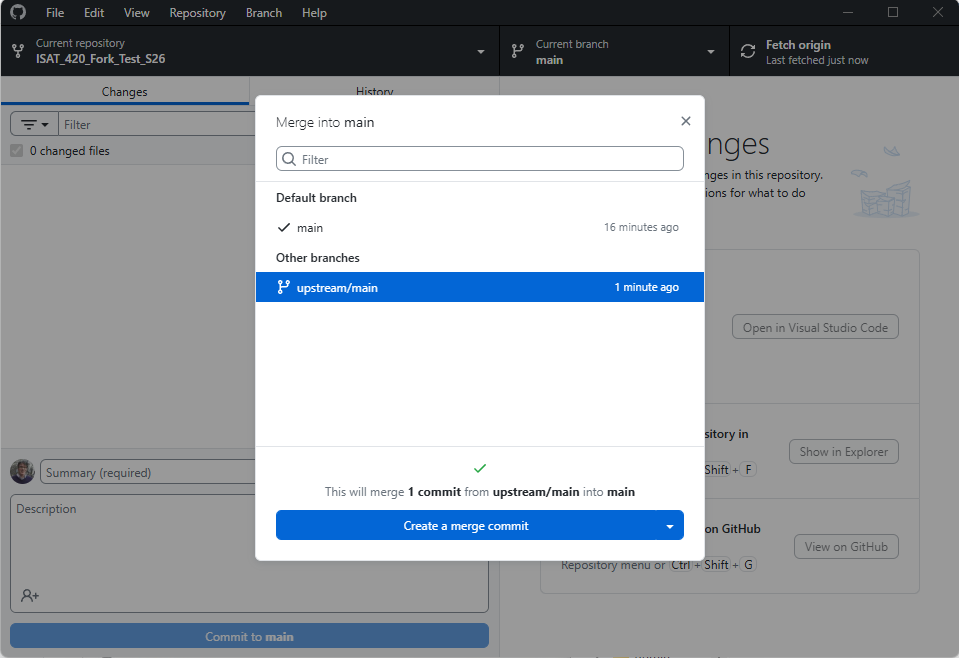
- If there are any changes in the original repository that you forked (the
upstreamof your fork in git lingo) it will now attempt to merge all these changes into your repository. - Sometimes, this might cause a
merge conflict, if you already edited a file that would be overwritten by a change in theupstream. In this case, you would need to manually decide which file/ or part of files you want to keep.
- If there are any changes in the original repository that you forked (the
- Click
Push originto push any changes from your computer to GitHub.com
Standard workflow for making changes to a repository
- Fetch the latest changes from GitHub
- Click
Fetch originto make GitHub-Desktop aware of all changes on GitHub.com - This is always something that you should do when you come back to Github-Desktop after a while.
- Click
- Bring any changes from GitHub.com to your local hard drive
- Click
Pull Origin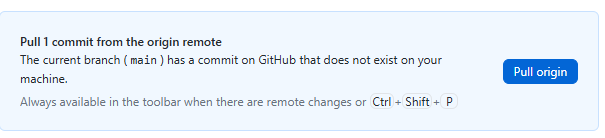
- Click
- Make your changes in this branch
- Make any changes to the files in this branch using your preferred code editor (e.g. Visual Studio Code, Jupyter Notebook, etc.)
- Make sure to save your chenges in the code editor before going back to GitHub-Desktop
- Commit your changes
- In GitHub-Desktop, go to the
Changestab - Write a descriptive commit message and click
Commit to <branch-name>
- In GitHub-Desktop, go to the
- Push your changes to GitHub
- Click
Push originto push your changes to the remote repository on GitHub.com
- Click